Selecting Hardware
There are several locations and features in PRO-TECH TITAN where selecting Hardware Items from Price Books is either necessary or convenient.
In all cases, selecting Hardware Items from Price Books is done in the same way - by using the "Product Selector."
The Product Selector
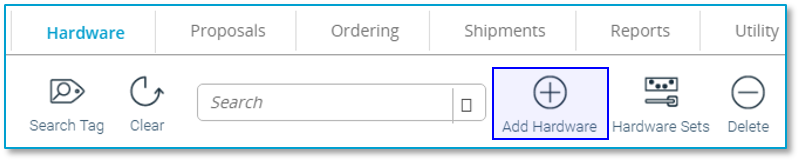
One of the places where you access the Product Selector is on the Project Hardware page by a clicking on the "Add Hardware" icon.
Layout
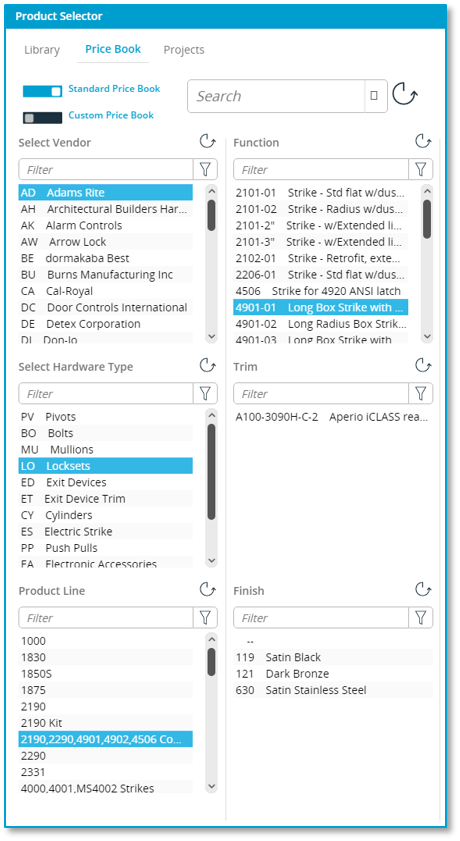
The Product Selector is divided into 3 panels.
Left Panel - Price Books
From the left panel you can explore price books. You can start by selecting either a Vendor or by selecting a Hardware Type. Selecting a Vendor will narrow the Hardware Types that the selected Vendor offers. Selecting a Hardware Type will narrow the list of Vendors to those Vendors that offer that Hardware Type.
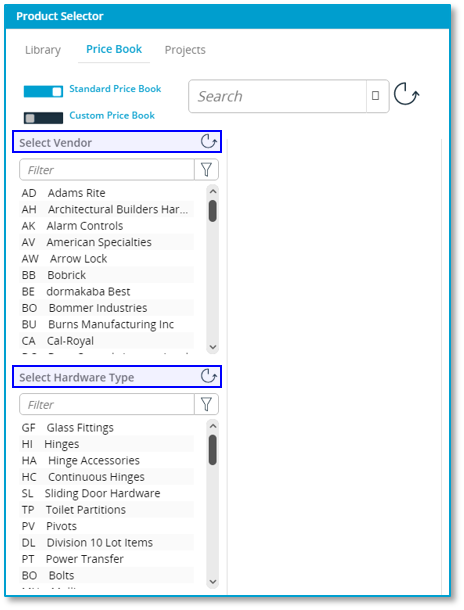
By making additional selections you can explore product lines, function, trim, model, sizes and finish.
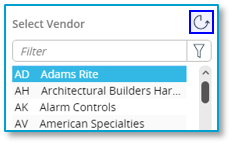
To clear a selection that you have made, click on the reset icon above the filter box.
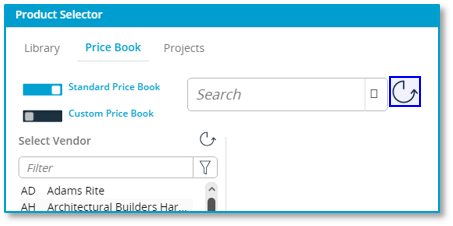
To clear all selections in the Product Selector, click on the larger reset icon next to the Search Box
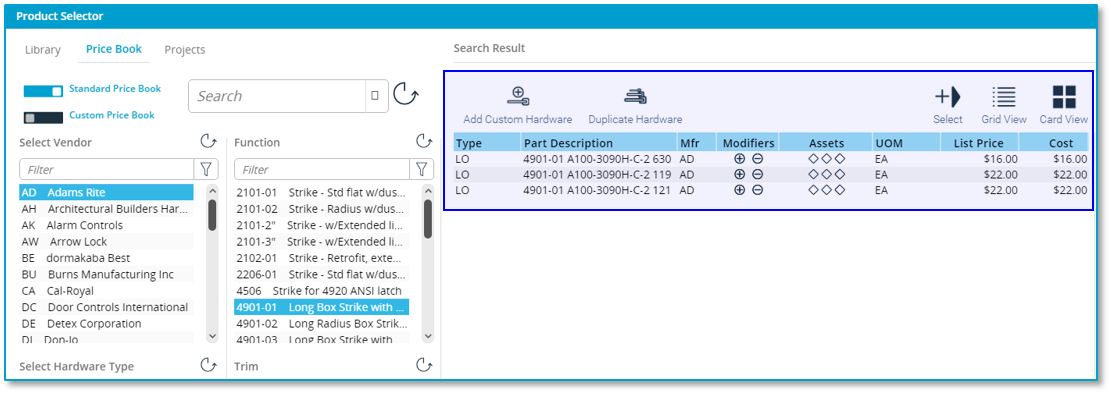
After you have made a selection from the first filter box in the second column, individual hardware items will be displayed in the center panel.
Left Panel - Global Search
If you know a portion of the part description of a hardware item, PRO-TECH TITAN can search through the millions of Hardware Items in all of the Price Books to find the Hardware Item.
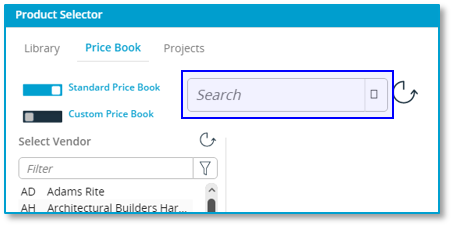
Simply enter the portion of the part description into the Search Box and press the return key on the keyboard. Search results will be displayed in the center panel.
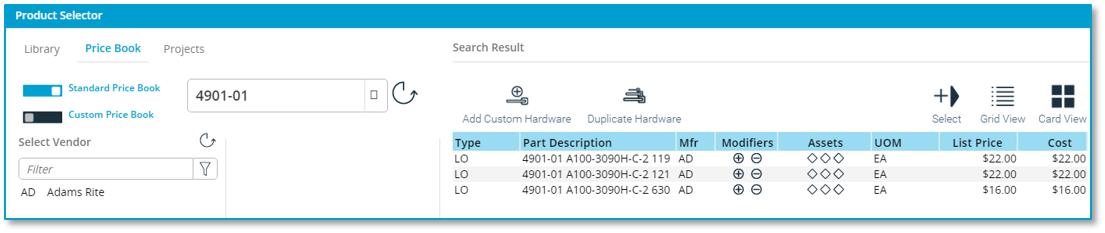
The Vendor and Hardware Type filter boxes will show the Vendors and Hardware Types that exist in the search results. You can click on these to narrow the search results by Vendor or Hardware Type.
Center Panel - Hardware Items
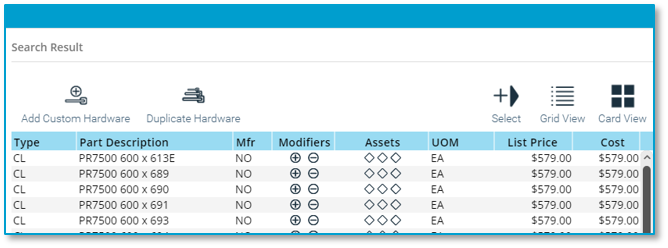
Whether found by Global Search or by drilling down into Price Books, matching Hardware Items are displayed in the center panel.
Selecting Modifiers
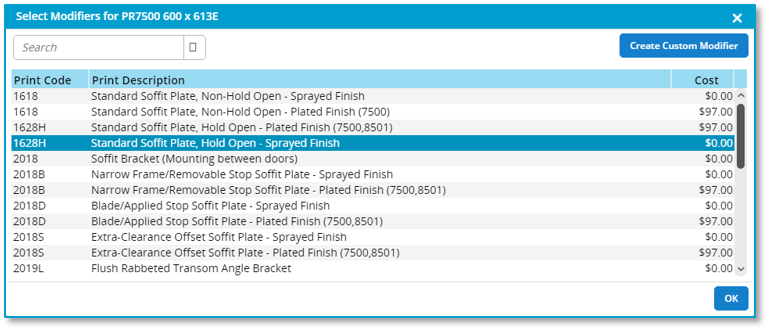
Click on the "Modifiers" icon to access the modifiers available for a specific Hardware Item.

Click on one or more modifiers to add the modifier to your Hardware Item. Clicking on a modifier a second time will de-select the modifier.
Viewing Assets and Cutsheets
Click on the "Assets" icon to access the collateral available for a specific Hardware Item.

Select an asset from the list presented. Assets can be Cutsheets, images, installation instructions, wiring diagrams, etc.
Adding a Hardware Item to Project Hardware
Double-click on a Hardware Item in the Center Panel to add it to your project. Or, you can single-click on a Hardware Item and then click on the "Select" icon.
The selected Hardware Item will now appear highlighted in the Right Panel.
Right Panel - Selected Hardware Items
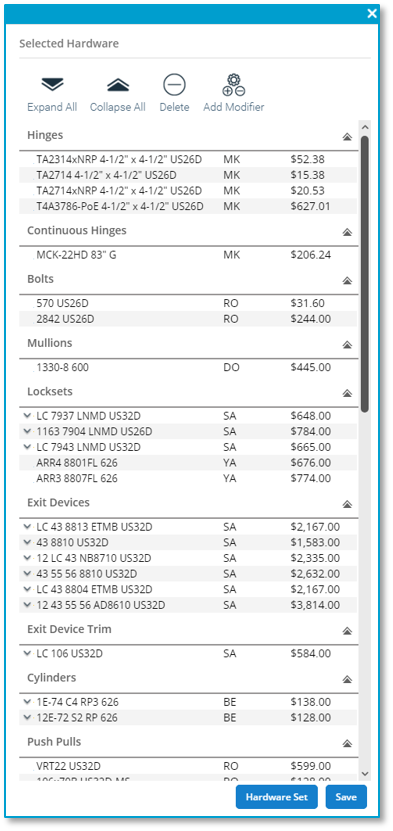
The Right Panel of the Product Selector displays all of the Hardware Items that you have added to your project - your "Project Hardware."
Hardware ITems are grouped by Hardware Type and displayed in DHI order.
Closing the Product Selector
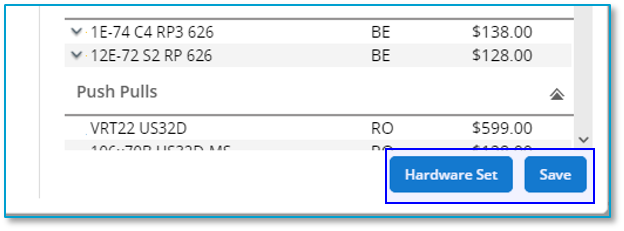
Exit the product Selector by either jumping to the Hardware Set Editor or by simply clicking on the "Save" button.