
Libraries - Add Hardware
Hardware and hardware sets can be added to a library from multiple locations within PRO-TECH TITAN.
Adding Individual Hardware Items
Adding Hardware Items From the Hardware Page
From the Hardware Page while in the list view, you can select one or more hardware items and click on the "Add To Library" icon.

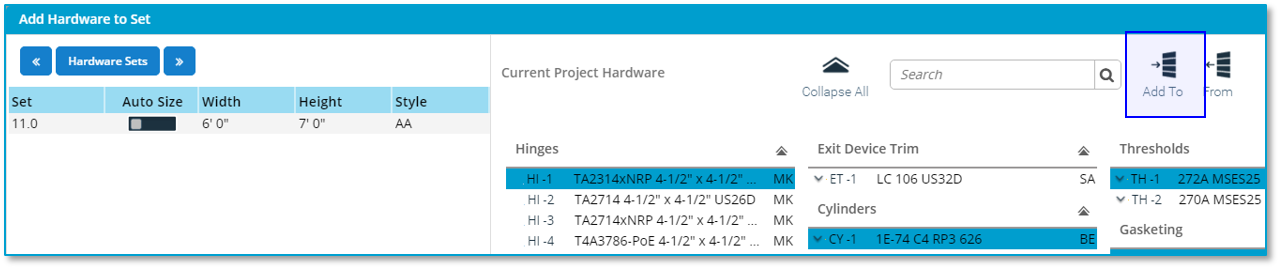
Adding Hardware Items From the Hardware Set Editor
All of the hardware items in the project that have been assigned to hardware sets can be added to a library.
Simply click on the "Add To Library" icon to add all displayed hardware to a library.
Adding Hardware Sets
Adding Hardware Sets From the Hardware Page
From the Hardware Page while in the Sets view, you can select one or more hardware sets and click on the "Add To Library" icon.

Adding Hardware Sets From the Hardware Set Editor
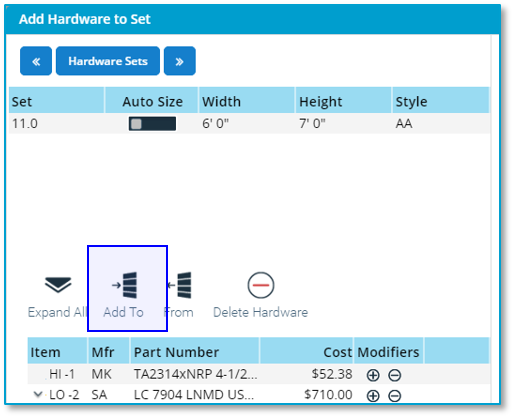
An individual hardware set can be added to a library from the Hardware Set Editor.
Simply click on the "Add To Library" icon to add the current hardware set to a library.
Stripping Tags
When adding hardware items or hardware sets to a library, you will see this prompt:
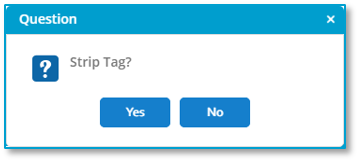
A hardware item or a hardware set may have Tags assigned to them. You may not want these Tags to remain assigned to the items or sets in the library. Although it is possible to also strip tags from items or sets being pulled from a library, stripping Tags here will ensure that the Tags are not accidentally pulled into future projects.