
Libraries - Copy Hardware
Both Hardware items and Hardware Sets can be copied from libraries while configuring your project.
Copying Hardware Items While in the Hardware Set Editor
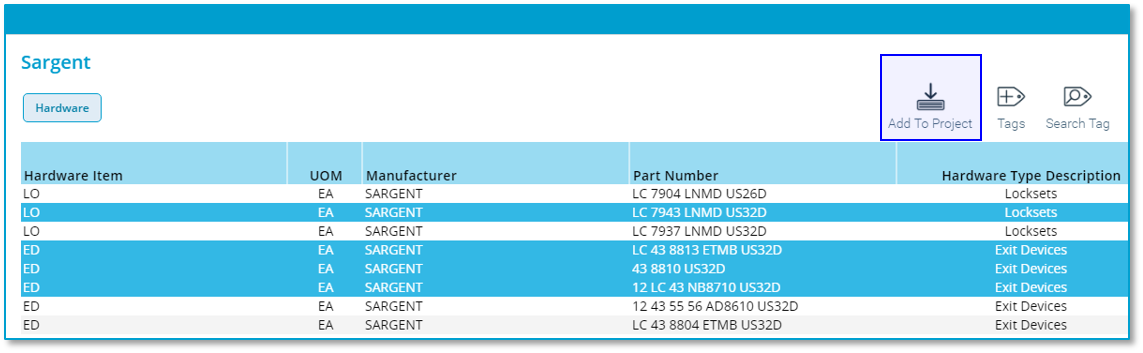
Individual items can be added to your project hardware from the Hardware Set Editor. To do so, Click on the "From Library" button in the Hardware Set Editor.

After selecting a library, select a single hardware item or use control-click and/or shift-click to select multiple hardware items. Then click on the "Add to Project" icon. The selected items will now appear in the hardware set editor.
Copying Hardware Sets
You can copy Hardware Sets from a library from two locations in PRO-TECH TITAN. From the Hardware page "Sets View" and while in the Hardware Set Editor.
Copying Hardware Sets While in the Hardware Set Editor
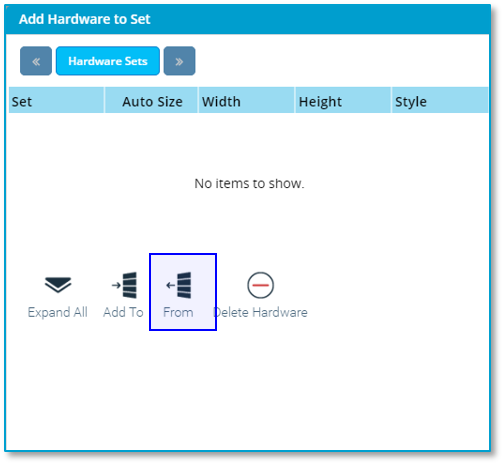
While in the Hardware Set Editor, you can click on the "From Library" column in the left-hand panel.
Copying Hardware Sets While On the Hardware Page
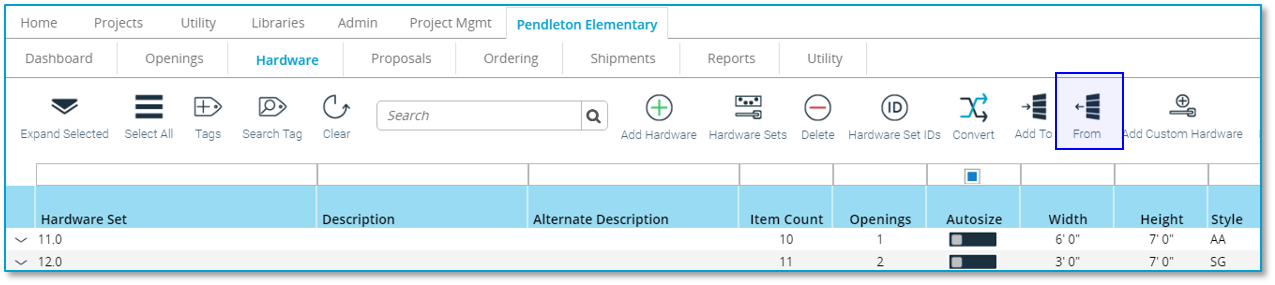
While on the Hardware page and while in the "Sets View," you can click on the "From Library" icon.
After selecting a library, select a single hardware set or use control-click and/or shift-click to select multiple hardware sets. Then click on the "Add to Project" icon.
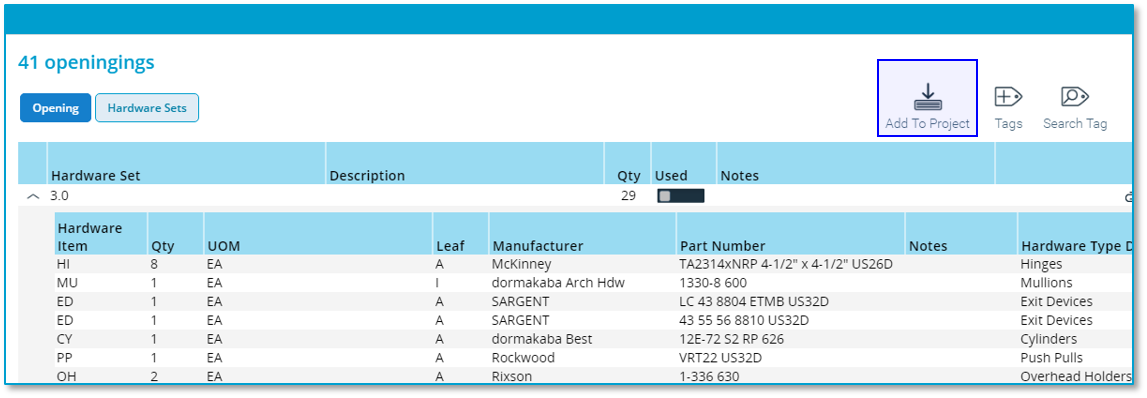
The selected hardware sets will now be available in your project.